
In a world where every tap and swipe counts, mastering your iPhone’s side button can feel like unlocking a treasure chest of convenience. Whether you want to summon Siri, take a screenshot, or silence that ever-elusive notification, this little button packs a punch. But let’s face it—figuring out how to set it up can feel like trying to solve a Rubik’s Cube blindfolded.
Understanding the Side Button Functionality
The side button on an iPhone plays a crucial role in enhancing user experience. Its multiple functions streamline tasks, making the device more intuitive.
Overview of the Side Button
The side button serves several purposes on an iPhone. Users can quickly access Siri by pressing and holding the side button. It also functions as a power button for turning the device on or off. Additionally, taking screenshots requires a simple combination with the volume buttons. Other functionalities include starting Apple Pay and activating Emergency SOS. Familiarity with these features allows users to utilize the iPhone more effectively.
Importance of Customizing the Side Button
Customizing the side button enhances usability and personalization. Users can assign specific functions, such as activating accessibility features or controlling music playback. This adaptability ensures that the button meets individual preferences and needs. Streamlined access to frequently used functions reduces time spent navigating through menus. Familiarizing oneself with customization options leads to a more tailored user experience.
How to Access Side Button Settings
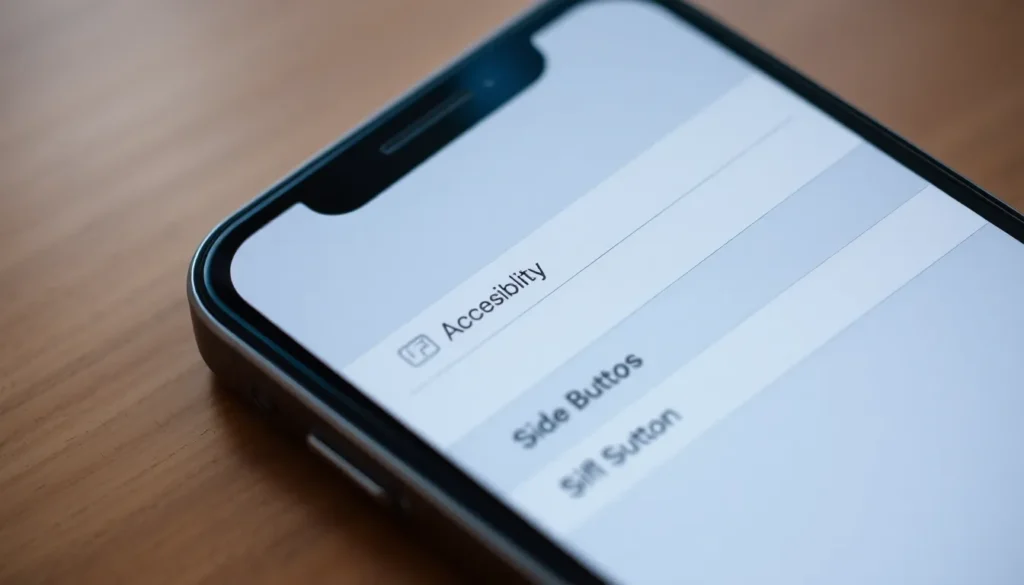
Accessing the settings for the side button is straightforward. Follow the steps below to customize its functions effectively.
Navigating to Settings
Open the “Settings” app on the iPhone. Look for the gear icon on the home screen. Tapping the icon displays a menu with various options. Scroll down the list until reaching “Accessibility.” Selecting this will lead to more functions related to device adjustment.
Finding the Side Button Option
Within the “Accessibility” menu, locate “Touch.” This section contains options for customizing touch features. Scroll down until finding “Side Button.” Upon selecting this, users can adjust settings such as click speed. The interface will also provide options for configuring what the button controls.
Customizing the Side Button
Customizing the side button enhances user interaction with the iPhone. This adjustment allows for personalization according to individual preferences.
Setting Single Press Functions
Access the single press function through the side button settings. Users can choose from options like activating Siri or taking a screenshot. Selecting a function streamlines daily tasks. Each choice optimizes the button’s utility, catering to specific needs. Customization in this area improves overall efficiency when using the device.
Configuring Double Press Actions
Double press actions can significantly enhance multitasking. In the settings, users find various options, including launching the camera or Apple Pay. Choosing a preferred action allows quick access to commonly used features. This personalization results in faster navigation and improved user experience. By defining these actions, individuals can manage their devices with greater ease.
Adjusting Long Press Settings
Long press settings provide additional control over functionalities. Users often select options like activating Emergency SOS or the device’s accessibility features. Choosing a specific action ensures that crucial tasks are just a press away. This customization can enhance safety and accessibility. Prioritizing these settings makes it simpler to access essential functions quickly.
Troubleshooting Side Button Issues
Resolving side button issues can enhance the iPhone experience. Users may encounter several common problems that affect functionality.
Common Problems and Solutions
Users often experience unresponsive side buttons. In this case, ensure the software is updated; outdated versions may cause this issue. Cleaning the button area can help alleviate debris-related responsiveness. If clicking the button feels inconsistent, adjusting the click speed in settings might improve functionality. Occasionally, a simple restart resolves temporary glitches that hinder performance. When the side button doesn’t execute assigned actions, resetting preferences to factory settings may rectify the issue.
When to Seek Professional Help
Situations arise when professional assistance becomes necessary. If the side button continues to malfunction after troubleshooting, hardware damage might be the cause. Physical signs like cracks or unusual noises indicate potential internal issues. Users should refrain from attempting complex repairs, as they may void warranties. Consulting Apple Support or visiting an authorized service provider ensures proper assessment and repair. Persistent problems with the side button might also signal the need for device replacement, especially if the problem affects overall usability.
Mastering the side button on an iPhone significantly enhances user experience. By customizing its functions, users can streamline their daily tasks and access essential features with ease. Whether it’s activating Siri or taking quick screenshots, the side button’s versatility is invaluable.
Addressing any issues that arise is equally important to keep the device functioning smoothly. Regular maintenance and awareness of potential problems can prevent frustration. With the right setup and understanding, the side button can become a powerful tool for maximizing efficiency and personalizing the iPhone experience.


