
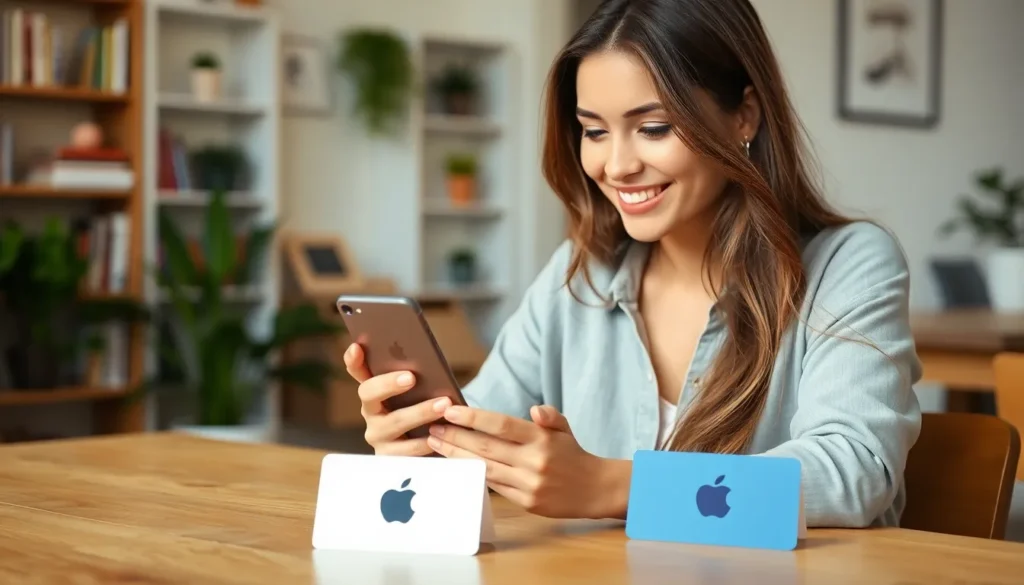
Imagine this: you’ve got an Apple gift card burning a hole in your pocket, and you want to unleash its magic right from your iPhone. Adding that card to your Wallet isn’t just a techy flex; it’s a smart move that keeps your digital life organized and your spending seamless. Who wouldn’t want to turn a colorful piece of cardboard into instant purchasing power?
Understanding Apple Gift Cards
Apple gift cards offer a flexible and convenient way to access a variety of services and products. They can be used for app purchases, subscriptions, and even physical items at Apple retail locations.
Types of Apple Gift Cards
Apple offers two main types of gift cards: App Store and iTunes gift cards, and Apple Store gift cards. App Store and iTunes gift cards focus on digital content such as apps, music, and movies. Apple Store gift cards apply to purchases in physical Apple locations and online. Both types allow users to select their preferences and enjoy their purchases seamlessly.
Benefits of Using Apple Gift Cards
Using Apple gift cards presents multiple advantages. First, they provide a straightforward way to budget and manage spending on digital content. Second, gift cards eliminate the need for a credit card during purchases, enhancing security. Third, recipients can enjoy flexibility by choosing how and when to use their gift cards. Lastly, Apple gift cards often have no expiration dates, ensuring lasting value over time.
Prerequisites for Adding Gift Cards
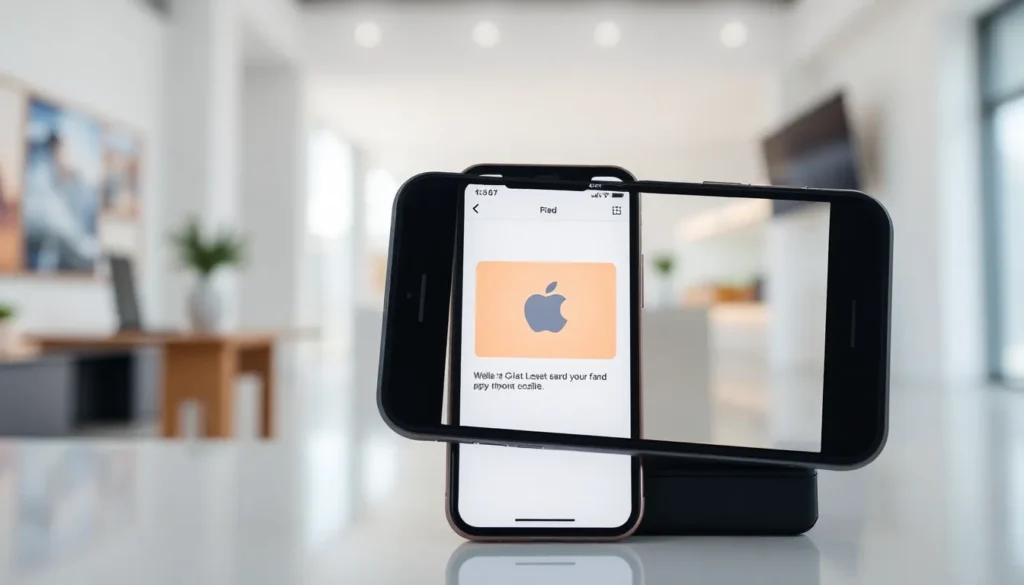
Adding an Apple gift card to an iPhone wallet requires certain prerequisites. These conditions ensure a seamless process when integrating gift cards into the digital environment.
Compatible Devices
Apple gift cards can only be added to devices that support the Wallet app. Supported devices include iPhone 6 and later models, iPod touch 6th generation or later, and Apple Watch with compatible software. Using a compatible device ensures access to all Wallet features. Users with older devices may face limitations or compatibility issues.
Required Software Updates
Keeping your iOS updated is crucial for adding gift cards. The latest version of iOS enhances compatibility with the Wallet app. Check for updates by navigating to Settings, then General, and finally Software Update. Running the most recent version of iOS optimizes functionality and security. If the device is outdated, some features may not work as expected.
Step-by-Step Guide to Adding Apple Gift Card to Wallet on iPhone
Adding an Apple gift card to your Wallet app is simple. Follow these steps for a seamless integration.
Opening the Wallet App
To start, locate the Wallet app on the iPhone home screen. Tap the app icon to open. The app interface displays various options for payments and cards. Ensure a stable internet connection for optimal performance. Users should find the app user-friendly and intuitive.
Locating the Add Option
Upon opening the Wallet app, look for the plus sign or “Add” option. This feature is usually found in the upper right corner of the screen. Tapping it presents several card categories, including gift cards. Select the gift card category to proceed. The interface guides users through the next steps clearly.
Scanning or Entering the Card Details
Next, choose to scan the gift card or enter its details manually. For scanning, align the card within the frame on the screen. The app captures the information automatically. In cases where scanning isn’t possible, manually input the gift card number and PIN. Confirm the entered details before proceeding to ensure accuracy.
Troubleshooting Common Issues
Users may encounter issues when adding an Apple gift card to their Wallet. Addressing these challenges promptly ensures a smoother experience.
Error Messages
Error messages often arise during the process of adding a gift card. A common error can stem from incorrect card details; this typically prevents successful addition. Users should double-check the gift card number and PIN to confirm accuracy. Sometimes, network connectivity issues may also trigger error alerts, so maintaining a stable internet connection is essential. Restarting the iPhone can resolve temporary glitches, allowing a fresh attempt at adding the gift card.
Card Not Accepted
Some cards may not be accepted in the Wallet app due to compatibility restrictions. Users should first ensure that the gift card type aligns with Apple’s designated categories. Not all gift cards are redeemable in the Wallet, particularly if they are intended for exclusive use in retail environments. Validity dates on the card can also play a role, as expired or compromised cards face rejection. For assistance, checking with Apple Support ensures prompt resolution for any outstanding issues.
Adding an Apple gift card to the Wallet app on an iPhone offers a convenient way to manage purchases and access a wide range of services. By following the straightforward steps outlined, users can easily integrate their gift cards into their digital wallets. This not only enhances organization but also improves budgeting and security while shopping.
With the flexibility of using gift cards for various purchases without expiration dates, they serve as a valuable addition to anyone’s digital life. If any issues arise during the process, users should feel empowered to troubleshoot or seek assistance from Apple Support. Embracing this digital solution can significantly streamline the shopping experience.


